Stop juggling separate ports for your frontend and API. The Azure Static Web Apps CLI unifies your local environment for a seamless debugging experience.
#1about 2 minutes
Simplifying deployment with Azure Static Web Apps
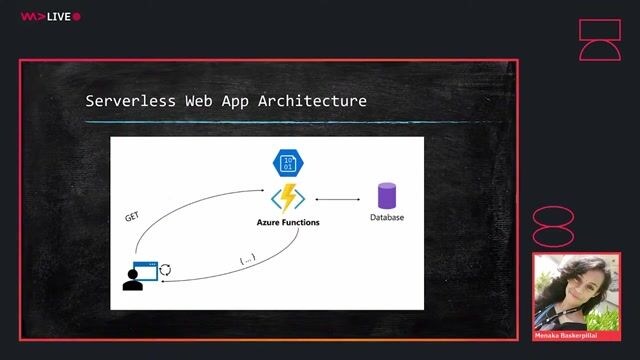
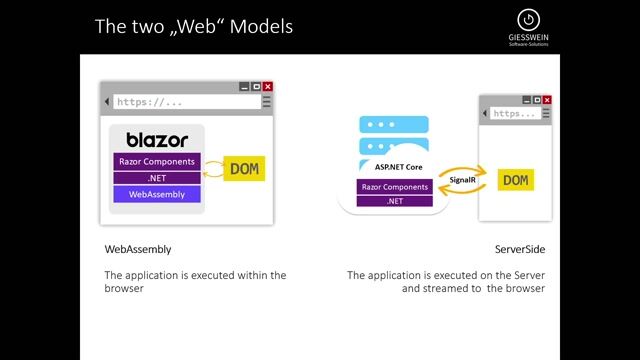
Azure Static Web Apps combine static files and serverless APIs into a single resource, avoiding the complexity of managing multiple services and CORS.
#2about 1 minute
Solving local development challenges with the SWA CLI
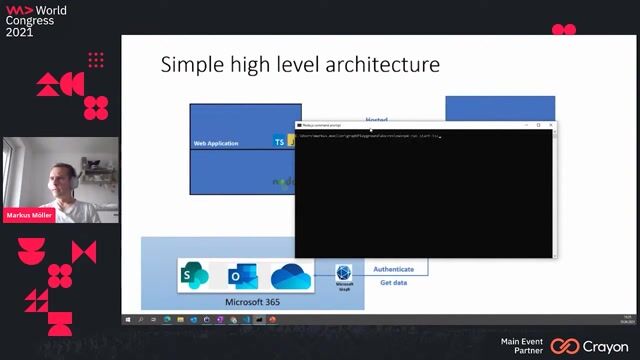
The Azure Static Web Apps CLI provides the missing proxy layer to connect your locally running client and API, replicating the cloud environment.
#3about 5 minutes
Debugging the client and API with breakpoints and hot reload
Use the SWA CLI as a proxy to enable full debugging with breakpoints in both your Blazor front end and Azure Functions API, and leverage hot reload for faster iteration.
#4about 3 minutes
Running the entire application with a single command
Consolidate your local development workflow by using SWA CLI flags to automatically start both the client dev server and the Functions API from one terminal.
#5about 4 minutes
Mocking authentication and user roles locally
The SWA CLI includes a built-in authentication emulator that allows you to fake user logins and dynamically assign roles for testing protected routes.
#6about 2 minutes
Testing against published static files for production parity
Point the SWA CLI directly to your application's build output folder to test against true static files, ensuring production-like behavior for routing and fallbacks.
#7about 2 minutes
Using a configuration file to manage SWA CLI commands
Create a `swa-cli.config.json` file to define and name complex startup configurations, making it easy for your team to run the application consistently.
#8about 2 minutes
Summary and resources for the SWA CLI
Find links to the open-source GitHub repository and official Microsoft Learn documentation to get started with the Azure Static Web Apps CLI.
Related jobs
Jobs that call for the skills explored in this talk.
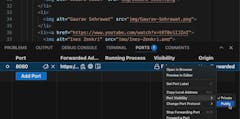
How to make a local application available on the web with Visual Studio CodeVisual Studio Code allows you to make a local application available on the web using a feature called “port forwarding”.
All you need to do is follow these steps:
Open the current folder in Terminal (Ctrl + `)
Start your server or run your build pr...
Why Attend a Developer Event?Modern software engineering moves too fast for documentation alone. Attending a world-class event is about shifting from tactical execution to strategic leadership.
Skill Diversification: Break out of your specific tech stack to see how the industry...